

Building Computer Skills to Enable Success
Building Computer Skills to Enable Success
OneDrive vs SharePoint vs Teams File Storage Guide
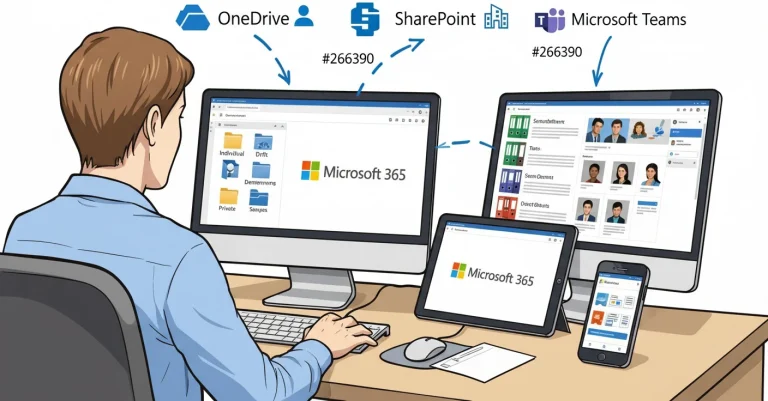
If you’ve ever finished working on a document, clicked Save (or more likely, Save As), and then paused because you weren’t quite sure where it should go, you’re in very good company. This moment of hesitation happens to everyone, from new users to seasoned Microsoft 365 veterans. I’ve been teaching this topic for more years than I care to remember, and this confusion has always been one of the most persistent challenges people face.
The problem isn’t lack of intelligence or technical skill. The problem is that Microsoft presents you with three perfectly reasonable options that all seem to do similar things:
- OneDrive
- SharePoint
- Teams
All three store files. All three sync across devices. All three allow collaboration. They overlap just enough to make the decision feel far more difficult than it should be. So, you pick one, move on with your work, and hope you can find the file again later.
Does this sound familiar?
This is exactly how organisations end up with chronic file management problems: multiple versions of the same document scattered across different locations, important files living in chat messages that no one can find six months later, and team members saying “I know it’s around somewhere… I just don’t know where.”
That last phrase reminds me of family road trips when I was a kid. We’d often drive up into the Dandenong Ranges, and at some point, mum would inevitably say to dad, “We’re lost.” His response was always the same: “We’re not lost, I just don’t know where we are!” The distinction seemed important to him, even if it didn’t help us find our way home any faster.
The real issue isn’t that Microsoft has given us too many tools. The issue is that each tool has a specific, intentional role, and that role isn’t always explained clearly or obviously.
This guide will change that. We’ll break down what OneDrive, SharePoint, and Teams are really designed for (it might not be what you think), how they work together within the Microsoft 365 ecosystem, and how to make confident storage decisions every single time you save a file.
Each Microsoft 365 tool plays a different role when it comes to file storage and collaboration. If you want a deeper understanding of how each one works, you can explore them individually using the links below.
- OneDrive – Understanding Your OneDrive Personal Workspace in Microsoft 365
- SharePoint
- Teams
Why This Question Causes So Much Confusion
At first glance, OneDrive, SharePoint, and Teams appear remarkably similar. You can upload files to all of them. You can open and edit files from all of them. You can share files through all of them. You can even collaborate in real time using all of them.
So why does it matter where you put files? Why can’t you just pick whichever location is most convenient in the moment?
Because when files end up in the wrong place, problems don’t necessarily appear immediately. Instead, they show up later (sometimes much later) when:
- Someone leaves the organisation and their files become inaccessible
- Permissions change and suddenly half the team can’t open a critical document
- A file link that’s been shared dozens of times suddenly stops working
- A team desperately needs a single “source of truth” but discovers five conflicting versions in different locations
- A project wraps up and no one can figure out where the final deliverables are hiding
Most file chaos isn’t caused by malicious intent or carelessness. It’s caused by reasonable people making reasonable decisions without a clear framework for understanding where different types of files belong.
Let’s establish that framework right now.
The Fundamental Model: Three Tools, Three Purposes
Before we dive into details, features, and specific use cases, here’s a simple mental model that makes everything else easier to understand:
- OneDrive = My files
- SharePoint = Our files
- Teams = Conversations around our files
If you remember nothing else from this entire guide, remember these three statements. Everything we’ll cover below fits neatly under this foundational idea.
This isn’t just a convenient simplification—it reflects the actual design intent behind each platform. Microsoft built these tools to serve distinct purposes within a cohesive system. Understanding those purposes eliminates most of the confusion.
Understanding OneDrive: Your Personal Workspace
OneDrive is your personal workspace within Microsoft 365. When I say “personal,” I specifically mean your personal work materials, not your massive collection of music videos, family photos, or personal tax returns. IT departments tend to frown on using company storage for non-work content, and for good reason.
Think of OneDrive as the modern replacement for several things you might remember from earlier computing eras:
- The “My Documents” folder that lived on your desktop
- Files stored directly on your local C: drive
- Personal network drives assigned to individual users
The crucial difference is that OneDrive exists in the cloud and syncs automatically across all your devices—your office computer, laptop, tablet, and phone. This makes it remarkably convenient, but that convenience can become a trap if you don’t understand its proper role.
What OneDrive Does Best
OneDrive excels in specific scenarios that align with individual work patterns:
Draft documents you’re still developing. When you’re creating something new, whether it’s a report, presentation, proposal, or analysis, the early stages are usually pretty messy. You’re experimenting with structure, trying different approaches, deleting entire sections. OneDrive gives you a private sandbox where you can work freely without worrying about colleagues seeing incomplete work.
Files only you need to access. This includes personal reference materials like training certificates, your resume, templates you’ve developed for your own workflow, notes and checklists specific to how you work, and learning resources for skills you’re developing.
Early versions of work that isn’t ready to be shared. Before something goes to your team or management, OneDrive provides a safe place to refine and polish without premature exposure.
Short-term collaboration with specific people. You can easily share files from OneDrive for quick feedback or limited collaboration. This works well for getting input from one or two trusted colleagues before wider distribution.
The key characteristic of all these use cases is temporary individual control. You maintain ownership, you decide when to share, and you determine when work is ready to move into team spaces.
The Critical Limitation: Ownership
Here’s what many people don’t fully understand about OneDrive: by default, ownership sits entirely with you. This has profound implications.
A simple but crucial rule: If you left the organisation tomorrow, would this file need to stay behind? If the answer is yes, it probably shouldn’t live in your OneDrive long-term.
When you leave an organisation:
- Your OneDrive account typically gets frozen, archived, or deleted according to company policy
- Files you’ve shared may lose accessibility for colleagues unless IT manually intervenes
- Documents that never migrated to team libraries can effectively disappear
- Shared links break, causing confusion and disruption
This isn’t just a theoretical concern, it happens constantly in businesses of all sizes, creating real issues for teams who relied on files stored in someone’s personal OneDrive.
Common OneDrive Mistakes
Even experienced users make predictable mistakes with OneDrive:
Using OneDrive as a long-term team filing system. Because sharing from OneDrive is so effortless, people often use it as a makeshift team library. This seems fine initially but creates problems when ownership becomes unclear or when the individual leaves.
Storing final versions of shared documents indefinitely. People start drafts in OneDrive and simply forget to move them when work is complete. The file remains in personal space even though it’s become a team resource.
Assuming others will always be able to access your files. Sharing creates access in the moment, but it doesn’t guarantee permanence. Links can break, permissions can change, and accounts can be deactivated.
These mistakes rarely cause immediate problems. Instead, they create delayed consequences that surface weeks or months later, often when the original file owner isn’t around to help resolve the situation.
Understanding SharePoint: The Team Filing Cabinet
If OneDrive is “mine,” SharePoint is definitively “ours.”
In document terms, SharePoint functions as the organisational filing cabinet—the place where files that matter to teams, departments, or entire organisations should live. It’s specifically designed for files that:
- Belong to a group rather than an individual
- Need a stable, permanent home
- Should exist independently of any single person’s employment
- Require structured access control
- Serve as authoritative versions or sources of truth
The fundamental difference between SharePoint and OneDrive comes down to ownership. Files in SharePoint are owned by the organisation or team, not by an individual. This means they persist regardless of staff changes, remain accessible according to defined permissions, and serve as reliable long-term resources.
What SharePoint Does Best
SharePoint excels at providing stable, organized, controlled storage for team resources:
Policies and procedures. Documents that define how your organisation or team operates need to live where everyone can find them consistently. SharePoint provides that stability.
Team templates and resources. Shared templates, guidelines, reference materials, and standard documents belong in SharePoint where the entire team can access current versions.
Client or project documentation. Work products, deliverables, contracts, correspondence, and project artifacts need permanent homes that outlive individual team members’ involvement.
Final versions of documents. Once something moves from draft to approved status, it should migrate to SharePoint as the authoritative version.
Files requiring controlled access. SharePoint’s permission system allows granular control over who can view, edit, or manage different documents and folders.
Structure Matters (But Simplicity Matters More)
SharePoint supports sophisticated organisational structures through folders, metadata, content types, and complex permission schemes. However, the goal isn’t complexity for its own sake.
A simple, logical structure that everyone on the team understands will always outperform a perfectly designed system that’s so complicated no one uses it correctly. When implementing SharePoint organisation:
- Start with broad, obvious categories that match how your team thinks about their work
- Avoid deeply nested folder hierarchies that require mental maps to navigate
- Use consistent naming conventions that make sense to new team members
- Consider metadata for categorization rather than creating endless folders
- Prioritize findability over theoretical perfection
The best SharePoint structure is the one people will use consistently.
Understanding Microsoft Teams as the Collaboration Layer
This is where the pieces often click into place for people.
Microsoft Teams is not a separate, independent file storage system. Understanding this single fact eliminates enormous confusion.
Instead, here’s how Teams really works:
- Teams uses SharePoint behind the scenes for all file storage
- Every Team you create automatically gets its own SharePoint site in the background
- Files shared in Teams channels are stored in that Team’s SharePoint document library
- Files shared in private chats are typically stored in the sender’s OneDrive and shared with chat participants
When you upload a file to a Teams channel, it doesn’t live “in Teams.” It lives in the SharePoint document library associated with that specific Team. Teams simply provides a convenient, conversation-focused interface for accessing those SharePoint files.
When you share a file in a one-on-one or group chat, it usually gets stored in your OneDrive and shared with the chat participants through a link.
That architectural difference alone explains a tremendous amount of confusion people experience with file management in Microsoft 365.
What Teams Is Really For
Teams is best understood as a collaboration hub and communication platform rather than a storage platform:
- A place for conversations, meetings, and quick coordination around work that’s happening
- A front door to shared files rather than their permanent home
- A context-rich environment where discussions and documents coexist
- A workspace that brings together chat, calls, meetings, and files in one interface
Think of Teams as the room where work happens, while SharePoint is the filing cabinet in that room where completed work gets organized and stored.
The Teams and SharePoint Relationship
Understanding the relationship between Teams and SharePoint resolves most confusion about where files “really” live.
When you’re working in a Teams channel and you click the Files tab, you’re actually looking at a SharePoint document library. Every file you see there physically exists in SharePoint. Teams is simply showing you those SharePoint files through a different interface—one that’s optimized for conversation and collaboration rather than structured organisation.
This isn’t magic or complicated integration. It’s architectural design. Teams is built on top of SharePoint, using it as the storage foundation.
You can prove this to yourself (and I love demonstrating this in training sessions): Upload a file to a Teams channel, then navigate to the corresponding SharePoint site. You’ll find that same file sitting there in SharePoint. The reactions when people see this for the first time are always memorable—suddenly the entire system makes sense.
Comparing the Three Side-by-Side
The table below gives you a simple comparison you can refer to whenever you’re making a decision about where a file should be stored:
Tool | Best For | Ownership | Typical Access | Longevity |
OneDrive | Personal work, drafts, individual reference materials | Individual | You (plus people you specifically share with) | Short to medium term |
SharePoint | Team files, organisational documents, final versions, policies | Team / Organisation | Defined groups with managed permissions | Long-term, permanent |
Teams | Collaboration, conversations, meetings, coordinated teamwork | Team (stored in SharePoint) | Team members via collaboration interface | Depends on underlying SharePoint storage |
The essential guideline: If a file needs to outlive an individual’s involvement with the team or project, SharePoint is the right choice every single time.
Common Real-World Scenarios and Where Files Should Go
Let’s work through specific situations you’ll encounter regularly, with clear guidance on where files belong.
“I’m working on a document before sharing it with anyone”
Start in: OneDrive
This is exactly what OneDrive is designed for. Work freely in your personal space without worrying about others seeing incomplete drafts.
When it’s ready: Move it to SharePoint for collaboration or final storage.
Real example: I follow this workflow consistently when writing training materials. I typically start in Word and store all drafts in OneDrive. Each chapter of a training manual gets created and saved as a separate document. I experiment with structure, revise content, and refine explanations—all in my personal OneDrive space where no one else sees the messy middle stages. Once I’m satisfied with the content, I move the complete set of files to our SharePoint site, where my business partner uses InDesign to transform them into properly formatted training manuals. The drafts stay private, the finals live in SharePoint, and the workflow is clean.
“We’re collaborating on a document as a team”
Use: SharePoint (often accessed through Teams)
When multiple people need ongoing access to work together on a document, SharePoint provides the stable foundation required. This keeps version history clear, permissions managed, and ownership organisational rather than personal.
SharePoint’s co-authoring capabilities mean several people can work together on a document simultaneously, seeing each other’s changes in real time. You get all the collaboration benefits of cloud storage with the stability of organisational ownership.
Access approach: Most teams find it easiest to access SharePoint files through their Teams channels, which provides the files alongside relevant conversations. But remember, the files are stored in SharePoint regardless of which interface you use to access them.
“This file is attached to a Teams chat, but where did it actually go?”
Most likely: The sender’s OneDrive, shared with the chat participants.
This is perfectly fine for quick, informal collaboration or short-term information sharing. It’s not ideal for long-term storage or for files that will become important team resources.
What to do: If the file becomes important or will need ongoing access, have the sender (or someone else) move it to SharePoint and share the new location. This prevents future access problems.
“This is a final document everyone needs access to”
Put it in: SharePoint
Final versions, approved documents, authoritative resources, and anything that serves as a reference for the team should always live in SharePoint. This ensures:
- Stable, reliable access
- Clear version control
- Organisational ownership
- Appropriate permissions
- Findability through search
Optional: Link to it from relevant Teams channels if the document relates to ongoing work there. But SharePoint is the primary home.
“We use Teams for everything, so do we even need to think about SharePoint?”
Yep, because you’re already using SharePoint. Teams is using SharePoint as its storage foundation, just with a different interface.
Understanding this relationship helps you avoid accidental file sprawl and confusion. When you know that Teams channels use SharePoint libraries behind the scenes, you can make better decisions about file organisation, understand where files really live, and troubleshoot access issues more effectively.
Think of it this way: Teams is SharePoint wearing a collaboration-focused interface. The hat might look different, but it’s still the same foundation underneath.
What Happens When Files End Up in the Wrong Place
When files aren’t stored with intention and understanding, several predictable problems emerge. These issues come up consistently in training sessions, and they resonate with people because they’ve experienced them firsthand.
People Leave, and Files Go with Them
If important documents live primarily in someone’s OneDrive, access becomes complicated when that person leaves the organisation. At minimum, there should be a clear process for document handovers and transfers before departures. Better yet, important team files should already be in SharePoint where they belong.
Real impact: Teams scramble to recover files, projects get delayed, knowledge is lost, and IT then has to manually intervene to extract files from departed employees’ accounts.
Multiple Versions Proliferate
One version lives in someone’s OneDrive. Another got shared in a Teams chat. A third was copied to SharePoint “just in case.” Maybe someone also downloaded a copy to their desktop for offline work. Suddenly no one knows which version is current, which has the latest edits, or which should be considered authoritative.
Even more common: People save sequential versions with names like “First Draft,” “Second Draft,” “Final Draft,” “Final Draft REVISED,” “Final Draft ACTUALLY FINAL,” and “Final Draft USE THIS ONE.” This creates clutter, confusion, and frustration.
Better approach: Keep drafts in OneDrive using version history instead of multiple files, then move the finished document to SharePoint as the single authoritative version.
Links Break and Confusion Spreads
Moving, renaming, or deleting files that have been extensively shared creates broken links scattered across conversations, emails, and saved resources. People click links that no longer work, can’t find documents they need, and waste time tracking down current locations.
Contributing factor: Files stored in OneDrive are more susceptible to this because individual users move and reorganize their personal files more frequently than team libraries get restructured.
None of this is dramatic or catastrophic. It’s just quietly, persistently inefficient, sort of death by a thousand small frustrations.
A Simple Decision Framework
Next time you save a file, ask yourself these three questions in sequence:
- Is this just for me right now? -OneDrive
- Does this belong to a team, department, or organisational function? -SharePoint
- Is this being actively discussed or collaborated on in Teams? – Store in SharePoint, access through Teams
This checklist alone should hopefully resolve most of your file placement questions. The key is pausing for just a moment before clicking Save to consider where the file belongs based on its purpose and audience.
Building Better Habits Without a Massive Clean Up Project
Here’s something important: You don’t need to reorganize everything today. You don’t need to audit every file you’ve ever created. You don’t need a comprehensive cleanup project before you can start doing things correctly.
Instead, focus on these practical steps:
Start with new files. Beginning today, make intentional decisions about where new work goes. Let your historical files gradually get organized as you encounter them in daily work.
Agree on simple team guidelines. This step is crucial. Everything becomes dramatically easier when everyone on the team operates from the same framework. Take fifteen minutes in a team meeting to establish basic principles about where drafts go, when things move to SharePoint, and how you’ll use Teams channels.
Use Teams as your access point, not your storage decision-maker. Think of Teams as how you interact with files, not where they fundamentally live. This mental shift prevents confusion about file locations.
Be consistent rather than perfect. Consistency beats perfection every time. A simple system that everyone follows reliably produces better results than a perfect system that’s too complicated to maintain.
What’s perfection anyway? In my experience, perfect file organisation is an illusion. Consistent, intentional file organisation based on clear principles is the achievable goal.
Understanding the Underlying Architecture
For those interested in understanding the technical relationships more deeply, here’s what’s happening behind the scenes:
OneDrive: Each user gets a personal SharePoint site collection specifically for individual storage. It’s technically powered by SharePoint technology, but it’s isolated to the individual user.
SharePoint: Provides the core content storage and management platform. Sites can be team sites, communication sites, or other specialized configurations. Each site contains document libraries where files live.
Teams: Built on top of SharePoint. Each Team creates a SharePoint team site. Each channel within a Team creates a folder in that site’s default document library. When you upload files to Teams, they go into SharePoint. When you work with files in Teams, you’re actually working with SharePoint files through the Teams interface.
Understanding this architecture helps you recognize that you’re not choosing between completely separate systems. You’re choosing where within an integrated system your files should live based on purpose, ownership, and audience.
My Teaching Metaphor: The Funnel
When I teach Microsoft 365 fundamentals, OneDrive and SharePoint always generate the most questions and confusion. Over the years, I’ve developed a simple description that consistently helps people understand the relationship.
Think of a funnel—you know, the kind you use for pouring liquids into bottles. It has a wide opening at the top and a narrow spout at the bottom. Got that mental image?
OneDrive is the narrow end of the funnel. It’s focused, specific, personal. It’s where your individual files go, designed for one person’s work.
SharePoint is the wide end of the funnel. It’s expansive, capable of holding lots of content from many people. It’s designed for team-wide or organisation-wide files.
If you think about it, the distinction is right there in the names themselves:
- OneDrive – The key word is “One.” That’s my stuff.
- SharePoint – The key word is “Share.” That’s our stuff.
I’m still working on a neat way of fitting Teams into this metaphor (it’s a work in progress!), but the key thing to remember is that if a file is in Teams, it’s in SharePoint. Teams just provides a different way to interact with those SharePoint files. I always love the reactions when I demonstrate this by adding a file to a Teams channel, then navigating to the corresponding SharePoint site to reveal the same file sitting there in the document library!
Conclusion: Clarity Creates Confidence
If you’ve ever felt unsure about where to put a file, that doesn’t mean you’re doing something wrong or that you’re somehow failing at Microsoft 365. It usually means the tools and their intended purposes weren’t explained clearly in the first place.
Once you understand the design intent behind each platform, everything shifts:
- OneDrive stops feeling risky because you understand it’s designed for temporary personal storage, not permanent team resources
- SharePoint stops feeling intimidating because you recognize it as simply the filing cabinet for team files
- Teams makes significantly more sense once you understand it’s a collaboration interface built on top of SharePoint storage
Here’s something I genuinely believe: If you hesitate before clicking Save, and that hesitation comes from pausing to think about where a file truly belongs, then that’s a good thing. That moment of consideration can save you and your team hours of frustration down the track.
The goal isn’t to make decisions instantly without thinking. The goal is to make decisions quickly and confidently based on a clear understanding of each tool’s purpose. With the framework and guidelines in this article, you now have exactly that understanding.
Start putting it into practice today. Make intentional storage decisions for new files. Share these concepts with your team. Watch how much clearer your file management becomes when everyone operates from the same understanding.
The tools are powerful. The system is well-designed. You just needed to understand the blueprint.