

Building Computer Skills to Enable Success
Building Computer Skills to Enable Success
OneDrive, Teams, and SharePoint Explained
If you’ve ever stopped mid-task thinking, “Wait… where should this document live?” you’re not alone. Microsoft 365 gives us a lot of options, including OneDrive, Teams, SharePoint and even Microsoft 365 Groups, and all of them have slightly different purposes. Add constant UI updates to the mix, and it’s no wonder people get confused.
The good news is, once you understand the roles of each platform, storing, sharing, and collaborating on files becomes a lot less stressful.
Hi, I’m Mark Finney, and these are the questions we get every time we teach Microsoft 365. There is so much going on, and let’s face it, there are just too many ways to save and collaborate in Microsoft 365. No wonder people are confused! In this article, I’ll get right to the key points and break it down in plain English.
OneDrive: Your Personal Workspace
You might want to think of OneDrive as your digital desk drawer. It’s private, secure, and ideal for anything you’re working on alone. Drafts, rough ideas, or temporary files can live happily here. You can also share individual files or folders with a colleague or two for small-scale collaboration (with an emphasis on small scale).
Quick tips for OneDrive:
- Only keep content here that isn’t “official” yet. Once a file becomes part of a bigger team project, move it into Teams or SharePoint.
- Be aware that when a user leaves the organisation, their OneDrive may eventually be deleted, so take backups of anything important.
- Great for quick edits or experiments, but not the place for long-term team content, unless it will only ever be your own stuff.

Microsoft Teams: Collaboration in Context
If your work involves regular back-and-forth, Teams is usually the simplest choice. It’s the hub where chats, meetings, and files all live together in one convenient place. You can think of the Teams environment as your digital open-plan office, where conversations happen alongside documents, so nothing gets lost in endless email threads.
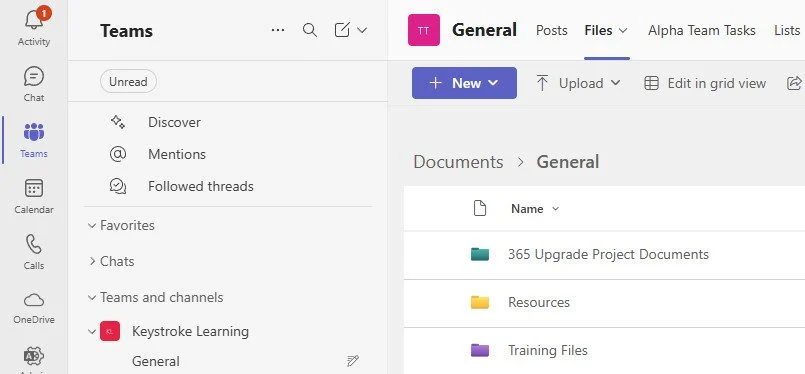
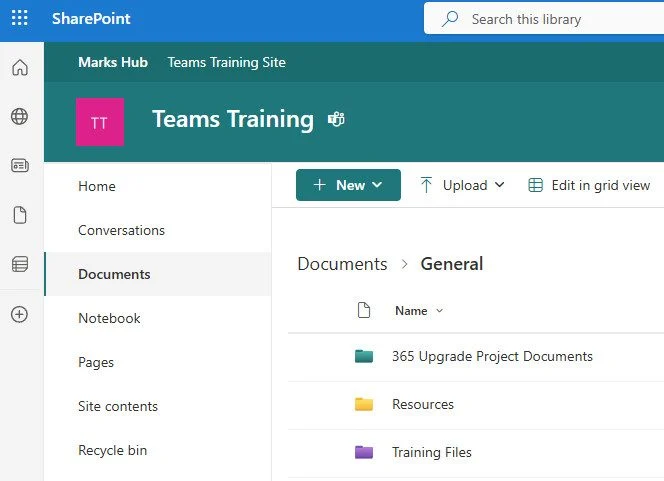
Every Team you create comes with a SharePoint site behind the scenes. This is the clever part: while you interact with files in Teams, they’re actually stored in SharePoint. Teams just gives you a more approachable, collaborative interface.
It’s worth taking a moment for that to sink in; when you store a file in a Teams channel, it gets stored in a SharePoint document library. They are literally the same thing. Teams just provides a nice, simple interface.
Key points for Teams:
- Use Teams when you need real-time communication or ongoing discussion around files.
- Shared Channels are great if two separate teams want to collaborate without creating extra Teams. For example, Sales and Marketing can work together in a single shared channel without adding unnecessary clutter.
- Think of Teams as the “front door” to the files, while SharePoint is the organised filing cabinet behind it.
SharePoint: Structured, Long-Term Storage
SharePoint is your heavyweight document management platform. It’s ideal for structured, formal, and regulated content, such as policies, procedures, contracts, or any document that needs careful version control and governance.
Why SharePoint works best for formal content:
- Advanced metadata lets you tag and categorise files in ways Teams cannot.
- Custom views, retention policies, and approval workflows help maintain control.
- Permissions mean sensitive content can be locked down more precisely than Teams’ channel-level access.
- Version history is robust, so you can always see who changed what and when.
SharePoint is where power users and content owners can spend their time organising, auditing, and managing documents. Teams is more for daily interactions; SharePoint is the backbone that keeps everything neat and compliant.
One Platform, Many Perspectives
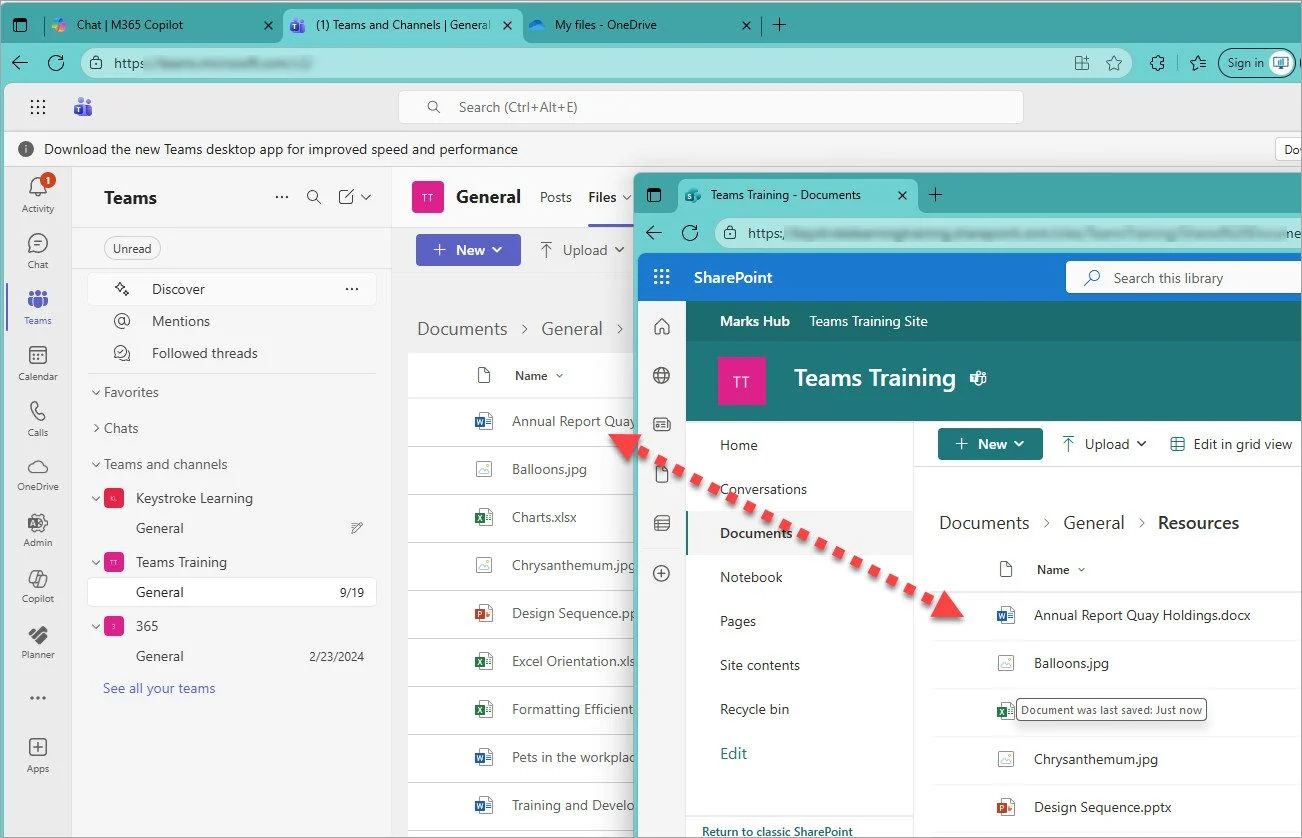
Here’s a golden nugget: Teams and SharePoint are not competing storage solutions. They’re two perspectives of the same underlying system. Files shared in Teams are stored in SharePoint, and any changes you make in either location are automatically reflected in the other.
Think of it like this:
- Teams = friendly, intuitive, collaboration-focused front end.
- SharePoint = structured, detailed, power-user back end.
You can open a file in Teams and edit it there. You can also jump straight into SharePoint for advanced management or to tweak settings like metadata, views, or workflows. Either way, you’re working on the same file.
Choosing the Right Tool for the Job
Here’s a simple framework to help decide:
Work Type | Recommended Platform | Why |
Solo work or drafts | OneDrive | Private, secure, flexible, short-term storage |
Real-time team collaboration | Teams | Chat, calls, meetings, easy access to shared files |
Structured, formal, or compliance-heavy content | SharePoint | Version control, governance, metadata, workflows |
Email-centric collaboration | Microsoft 365 Groups | Shared inboxes and calendars without chat clutter |
Pro tip: When in doubt, start with Teams. It covers most scenarios, especially for ongoing projects, and automatically leverages SharePoint in the background. Just remember, don’t use OneDrive as your main team repository. It’s personal storage, not a shared workspace. And please don’t get me started on using a “Shared OneDrive”. It’s an oxymoron that always makes me cringe!
Best Practices
- Name consistently: Teams channel names become SharePoint folders, so plan your naming convention.
- Use metadata and views in SharePoint: This helps when documents grow beyond a handful of files.
- Don’t duplicate unnecessarily: Files are automatically synced between Teams and SharePoint, so there’s rarely a reason to upload the same file twice.
- Train your team: Most users intuitively get Teams, but SharePoint takes some onboarding. A little guidance goes a long way.
- Leverage both: Teams for daily collaboration and communication, SharePoint for structure; using both together is the sweet spot.
Something that I’ve discussed with my clients is to start where you want the file to live. If you think about it, most of us are in the habit of creating a file, let’s say a Word document. Once we add some content, we then mess about trying to decide where to save the file. Instead, I get people to first think about where the file belongs and then have them create the file there.
For example, if you want to save the file in a SharePoint document library, navigate to the library, then click on the New button at the top left. Select the appropriate application, such as Microsoft Word, then give the file a name and start adding content. The file will now be saved into the correct location, and it will save automatically as you go.
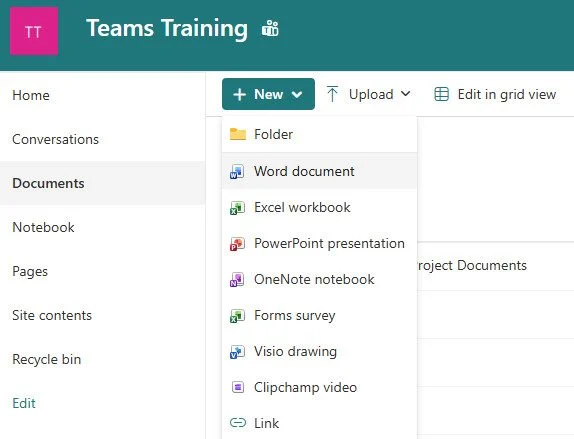
It takes a bit of a shift in thinking to start doing things this way, but I reckon you should give it a try. (I’ve had several clients report back to me that this is now the standard method they use).
Conclusion
Choosing where to store your files does not have to be confusing. OneDrive is your private sandbox, Teams is your collaborative workspace, and SharePoint is your structured, long-term repository. Just keep in mind that Teams and SharePoint are just two views of the same file system and knowing when to use each can save you headaches, lost files, and endless scrolling.
Next time you pause and ask, “Where should this go?” just match the work to the tool: draft in OneDrive, collaborate in Teams, organise in SharePoint. You can happily mix and match as needed. Your future self and your colleagues will thank you.