

Building Computer Skills to Enable Success
Building Computer Skills to Enable Success

In this article, I’ll explain how Microsoft To Do works as a central hub for all your tasks, particularly when you’re working in Outlook. If you’ve ever been confused about where your tasks are supposed to live, how flagged emails relate to To Do, or why Planner tasks sometimes appear in your To Do lists, this guide should help clear things up.
Look, I realise I mention this in almost every article, but it’s worth saying again: Microsoft 365 has so many features tucked away in different corners that most people never get around to exploring them all. They find a few tools that work well enough, stick with those, and never go any further. I completely understand, after all, who’s got time to learn every single app when you’ve got actual work to do? But the downside is that genuinely useful features get ignored simply because nobody knows they’re there.
Microsoft To Do is a good example of this. It’s been sitting quietly in Microsoft 365 for ages, pulling together tasks from different places, mostly without you even realising it. Most people either don’t know it exists, or they’ve opened it once, gotten confused about what it’s supposed to do, and never looked at it again. Once you understand how it works, including how it connects to Outlook and Planner, it starts to be a very effective way to manage everything you need to get done.
What is Microsoft To Do?
Microsoft To Do is a task management app that’s included with Microsoft 365. At its simplest, it’s a place where you can create lists of things you need to do, set due dates, add reminders, and tick items off when they’re complete.
But here’s where it gets interesting: To Do isn’t just a standalone app where you manually type in tasks (although you can if you want). It’s a hub that pulls together tasks from multiple sources across Microsoft 365, including:
- Tasks you create directly in To Do
- Emails you flag in Outlook
- Tasks assigned to you in Planner
- Tasks from other Microsoft 365 apps that support task integration
This aggregation is what makes To Do particularly useful. Instead of checking three different places to see what you need to get done today, you can open To Do and see everything in one spot.
The Confusion About Tasks in Microsoft 365
Before we get stuck into how To Do works, let’s look at why this whole situation is confusing in the first place.
For years, Outlook had its own Tasks feature. You could create tasks, set due dates, and view them in the Tasks folder at the bottom of Outlook. Lots of people still use this feature, and it works fine for basic task management as long as you don’t mind a few limitations. Personally, I’ve always found it a bit too limited.
Then Microsoft introduced To Do as a separate app, and as always, things got murkier. Are Outlook Tasks and To Do the same thing? Different things? Do they sync? Should you use one or the other, or both?
The short answer is that To Do has more or less replaced Outlook Tasks. When you create a task in To Do, it appears in Outlook Tasks. When you create a task in Outlook Tasks, it appears in To Do. They’re two different interfaces looking at the same underlying task data.
This means you can use whichever interface you prefer, whether it’s the good old Outlook Tasks view, or the more modern To Do app, and your tasks will show up in both places. In my opinion, To Do is better, for several reasons, but for me one of the main reasons is that you can create checklists that can become sub tasks.
Accessing To Do from Outlook
One nice thing is that you don’t even need to leave Outlook to use To Do. Microsoft has integrated To Do directly into Outlook so you can easily access your tasks without switching applications.
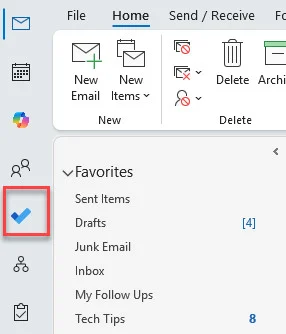
In the Outlook desktop app, you can open To Do by clicking the blue tick on the navigation bar on the left. In Outlook on the web, you’ll see the To Do icon in exactly the same place as the desktop app. I typically use Outlook on the desktop, but if you prefer the browser version, we can still be friends!
You can also open To Do in the browser by clicking the app launcher (that waffle menu in the top left). The key point is that To Do is designed to work alongside Outlook, even though you can open it as a separate tool if you want.
How Flagged Emails Become Tasks
This is one of the most useful (and misunderstood) features of the Outlook and To Do integration.
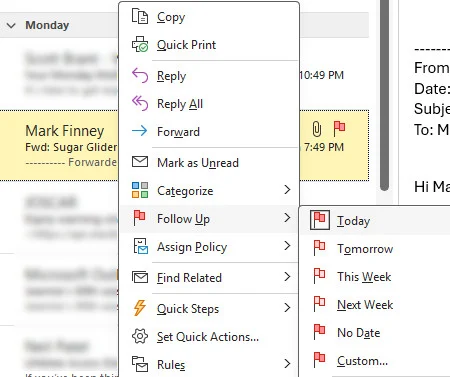
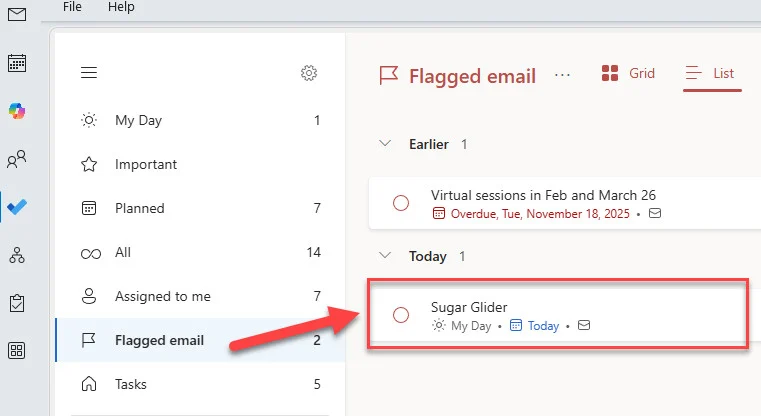
When you flag an email in Outlook, it automatically creates a task in To Do. The task appears in a special list called “Flagged email” with the email subject as the task name and any due date you set when flagging it.
This is great for inbox management. Instead of leaving emails sitting in your inbox as reminders of things you need to do, (been there, done that) you can flag them and get them out of the way. The task stays in To Do as a reminder, and when you click on it, it opens the original email so you can action it as needed.
How it works in practice:
- You receive an email that requires action but not immediately
- Right-click the email and choose “Flag” (or use the flag icon)
- Set a due date if needed
- The email now appears as a task in your To Do “Flagged email” list
- When you complete the action, mark the task off as complete in To Do
- The flag disappears from the email in Outlook
This workflow helps you keep your inbox clean while making sure nothing gets forgotten. Your inbox becomes a place for processing new messages, instead of a long-term storage system for stuff you need to remember.
Tip: Some people worry that moving flagged emails out of their inbox means they’ll lose track of them. In practice, it’s the opposite, because having them as tasks in To Do means you’re more likely to see them when planning your day, instead of having them buried among hundreds of other emails.
Creating Tasks Directly in To Do
Of course, not everything you need to do comes from an email. To Do lets you create tasks from scratch for anything you need to remember or get done.
The basics:
- Click “Add a task” in any list
- Type what you need to do
- Press Enter to create the task (don’t forget this step; I do this all the time, so the task isn’t created. I’ve gotten better with practice 😊).
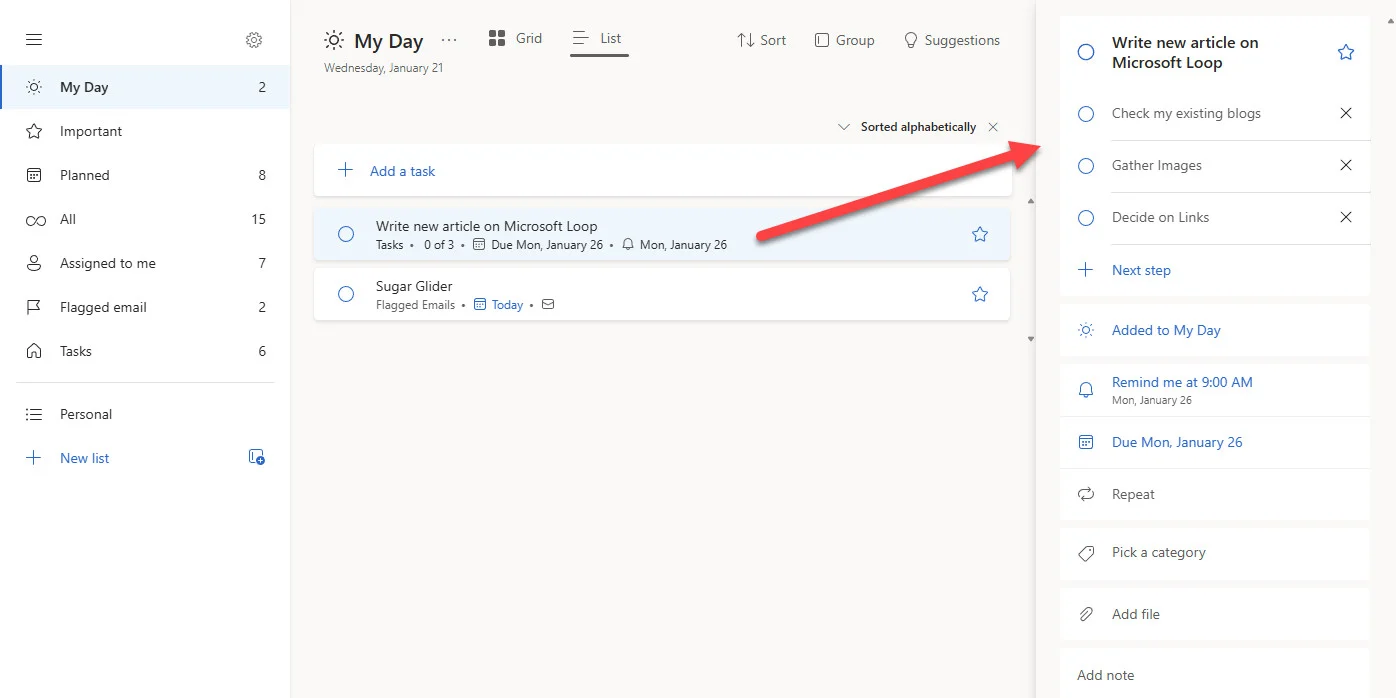
- Click on the task to add further details like due dates, reminders, notes, or subtasks
Lists for organisation:
To Do uses lists to organise tasks. You might create lists like:
- Work Projects
- Personal Errands
- Shopping
- Home Maintenance
- Weekly Review
Each list is independent, so you can organise tasks in whatever way makes sense for your workflow. There’s no “correct” structure, so you can just use what works for your brain.
My Day: The daily planning feature
One of To Do’s most useful features is “My Day”. This is a special list that resets every morning. Instead of looking at your entire task backlog (which can be overwhelming), you add just the tasks you plan to tackle today to My Day.
Each morning when you open To Do, it prompts you to review yesterday’s tasks and suggests tasks that might be relevant for today based on due dates and your history. You pick what you’re actually going to focus on, which makes the day feel more manageable.
This approach prevents the paralysis that comes from staring at a list of 147 tasks and not knowing where to start. My Day narrows your focus to what matters right now.
How Planner Tasks Appear in To Do
This is where To Do’s role as a hub really comes into play, and also where confusion often sets in.
If you’re assigned tasks in Microsoft Planner (the team task management tool), those tasks will automatically appear in To Do. You don’t need to do anything special, because the integration just works.
Why it matters
Lots of businesses use Planner for team projects and shared work. Someone assigns you a task in a Planner board, and suddenly you have another place to check for things you need to do. Except… you don’t, because that task shows up in To Do automatically.
How it appears
In To Do, you’ll see a list called “Assigned to me” (or sometimes it appears under the Planner board name). This list contains all tasks assigned to you across all Planner boards you’re part of. You can view them, mark them complete, add comments, and update progress, all without leaving To Do.
When you mark a Planner task complete in To Do, it updates in Planner as well. Everything stays synchronised.
The benefit
Instead of checking Outlook for email tasks, Planner for team tasks, and To Do for personal tasks, you can just open To Do and see everything assigned to you. It becomes a single dashboard for all your responsibilities.
Understanding the Task Ecosystem
Let’s see if we can try to tie this all together with a clear picture of how tasks flow through the Microsoft 365 ecosystem:
Source – To Do Hub
- Email you flag in Outlook – Appears in “Flagged email” list in To Do
- Task you create in Outlook Tasks – Appears in To Do lists
- Task someone assigns you in Planner – Appears in “Assigned to you” or Planner board lists in To Do
- Task you create directly in To Do – Appears in To Do (and in Outlook Tasks)
The result: To Do becomes your central location for seeing everything you need to do, regardless of where it started out.
This is the thing that many people miss. To Do isn’t just another task app competing with Outlook Tasks and Planner; it’s designed to be the aggregation point that brings everything together. In fact, I always describe it as an aggregation app when I’m working with my clients.
Practical Workflows for Using To Do with Outlook
Now that you have a better idea of how the pieces fit together, here are some practical ways to use To Do effectively:
Workflow 1: Email processing
As you go through your inbox, flag emails that require action but can’t be handled immediately. Set due dates when flagging so they appear at the right time. At the start of each day, review your “Flagged email” list in To Do and add relevant items to My Day.
Workflow 2: Daily planning
Open To Do first thing each morning. Review what didn’t get done yesterday. (Hopefully there’s not too much in there!) Check what’s due today or upcoming. Look at your Planner assignments. Add tasks to My Day that you can realistically accomplish. Focus on completing those before looking at the full backlog.
Workflow 3: Project task management
Create a list in To Do for each major project you’re working on. Break projects into specific tasks with clear next actions. Use due dates for tasks with real deadlines, but don’t feel pressured to date everything; some tasks are just “someday/maybe” items that you’ll get to when time allows. (You could even create a separate list for those “nice to do at some point” tasks).
Workflow 4: Weekly review
Set aside some time each week (Friday afternoon works well for some people) to review all your To Do lists. Clear out completed tasks. Move tasks that didn’t happen to appropriate new dates or back to the general list. Update Planner tasks if needed. This prevents tasks from getting stale and forgotten.
Common Questions and Confusions
“I flagged an email but it disappeared from my inbox. Where did it go?”
If you’ve moved the email to another folder, it’s still there, but the flag just created a task in To Do. Search for the email subject or click the task in To Do which will open the email wherever it lives.
“Why do some tasks appear in multiple lists?”
This usually happens with Planner tasks. They might appear both in an “Assigned to you” list and in a list named after the Planner board. This is normal, it’s just different views of the same task.
“Can I use To Do without Outlook?”
Yes, you have my permission! To Do works as a standalone task management app. The Outlook integration is an added benefit if you use Outlook, but it’s not required. You can use To Do on its own for personal task management.
“What happens to tasks if I leave the company?”
Tasks you created in To Do are tied to your Microsoft 365 account. Planner tasks assigned to you in organisational boards would remain in those boards but would no longer appear in your To Do if you lose access to the organisation’s Microsoft 365 tenant.
“Should I use Outlook Tasks view or the To Do app?”
Whichever you prefer! They’re two interfaces to the same data. The To Do app tends to be more visually appealing and has features like My Day, while Outlook Tasks integrates directly into your email workflow. Many people use both depending on context. I also have the Mobile app on my phone, so my tasks follow me wherever I go. I hear them calling “you can’t get rid of us that easily!”
Tips for Making To Do Work Better
Like any tool, a few small adjustments can make a big difference in how useful To Do becomes:
Keep task names action-oriented – Instead of “Project report”, use “Draft introduction for Q4 project report”. Clear next actions are easier to start than vague reminders.
Don’t over-organise – You don’t need dozens of lists. Start with 3-5 lists and add more only if you genuinely need them. Too many lists just creates another organisational burden.
Be realistic with My Day – If you consistently add 20 tasks to My Day and complete 5, you’re setting yourself up for frustration. Add fewer tasks and feel good about completing them.
Use due dates sparingly – Not everything needs a due date. Save them for tasks with real deadlines. Otherwise, you’ll train yourself to ignore due dates because they don’t really mean anything.
Review regularly – To Do only works if you actually look at it. Get into the habit of checking it at least once a day, ideally first thing in the morning when planning your day.
Don’t flag everything – If you flag every email, flagging becomes meaningless. Flag only emails that genuinely require follow-up action from you.
Why Most People Don’t Use To Do Effectively
Like Voting Buttons in Outlook, and many other Microsoft 365 features, To Do suffers from discoverability problems. Many people don’t realise it exists, or they tried it once, didn’t understand how it integrated with their existing workflow, and moved on it.
The Planner integration is particularly mysterious, since people see tasks appearing in To Do and don’t know where they came from or why they’re there. Without understanding the aggregation model, To Do just seems like random lists that may or may not be accurate.
Once you understand that To Do is designed as a hub that brings together tasks from multiple sources, it starts to make a lot more sense. It’s not competing with Outlook Tasks or Planner, it’s just consolidating them.
Conclusion
Microsoft To Do works best when you think of it as a central dashboard for everything you need to do, instead of just another task list app competing for your attention.
By pulling together flagged emails from Outlook, tasks from Planner, and your own personal tasks into one interface, To Do can reduce the number of places you need to check to stay on top of your work.
While it’s not perfect (some people prefer more robust task management systems like Todoist or Things), if you’re already working in the Microsoft 365 ecosystem, To Do provides a solid, integrated task management solution that requires no additional subscriptions or complex setup.
I figure if you’re already paying for it as part of your Microsoft 365 licence, then at the very least you may as well try it out.
Anyway, the key is understanding how the pieces fit together. Outlook emails can become tasks. Planner assignments appear automatically. Everything consolidates in To Do. Once you grasp that model, To Do changes from confusing to genuinely useful.
So next time you’re drowning in flagged emails, Planner assignments, and mental reminders of things you need to do, give To Do a proper look. It might just be the task hub you didn’t know you needed.