

Building Computer Skills to Enable Success
Building Computer Skills to Enable Success

Microsoft Project is a powerful tool for managing tasks, resources, and timelines. However, one concept that often confuses users is Effort-Driven Scheduling. If you’ve ever assigned a task to multiple people and noticed the duration automatically changing, congratulations, you’ve just seen it in action!
In this article, I’ll outline what Effort-Driven Scheduling is, how it works, and when to use it to make your project planning more effective.
Understanding Effort-Driven Scheduling
Effort-Driven Scheduling is a setting in Microsoft Project that determines how task duration is adjusted when resources are added or removed. The key principle of Effort Driven Scheduling is:
Total work remains constant, while duration and individual effort adjust based on resource allocation.
This means that if a task requires a total of 40 hours of work and you assign one person to it, that person will need 40 hours to complete it. However, if you add a second person, the duration will automatically be reduced to 20 hours, since the workload has been shared.
The Effort-Driven Formula
Microsoft Project follows this formula:
Work = Duration × Units
Where:
- Work is the total effort required (in hours, for example)
- Duration is the length of time scheduled to complete the task
- Units represent the percentage of time a resource is assigned to the task
When Effort-Driven Scheduling is enabled, Microsoft Project recalculates duration automatically while keeping total work the same.
How Effort-Driven Scheduling Works in Practice
Let’s look at a simple example:
- You create a task called Paint the Fence and estimate it will take 40 hours of work.
- You assign one painter (100% capacity), so the duration is 5 days (40 hours / 8 hours per day).
- You then add a second painter, and the duration adjusts to 2.5 days (40 hours split between two people).
This feature is very useful when dealing with tasks that can be completed faster with more hands on deck, and it is estimated that they work at the same speed.

When to Use Effort-Driven Scheduling
Effort-Driven Scheduling is great in these scenarios:
- Tasks can be divided among multiple people (this could be data collection, testing, content writing).
- You want project durations to adjust dynamically as more resources are added.
- You need a realistic estimate of task completion times.
On the other hand, it’s not ideal when:
Tasks are dependent on a fixed duration, regardless of the number of resources (e.g., training sessions, waiting times, or approval processes).
Adding more people doesn’t speed up completion (cooking a meal, remember the saying that too many chefs spoil the broth? That’s because having five chefs doesn’t make a dish cook faster!)
If a tradesperson is painting a fence and brings in an apprentice, even if the apprentice is slower, they can still complete the task faster together than the tradesperson could alone, but not as fast as two tradespeople, this is because the total amount of “fence painting” remains the same.
How to Enable or Disable Effort-Driven Scheduling
By default, new tasks you add in Microsoft Project are not set to Effort-Driven. You can enable or disable it per task using the following steps:
- Double-click the task to open the Task Information window.
- Go to the Advanced tab.
- Tick or untick the Effort Driven checkbox.
- Click on the OK button.
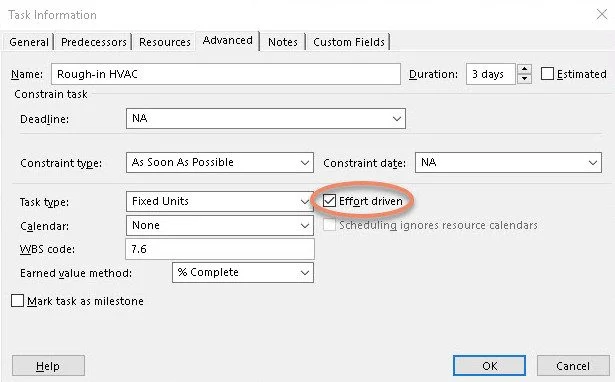
Alternatively, you can view or change this setting from the Task Form (found in the View tab when using the Task Details Form layout).
Common Pitfalls and How to Avoid Them
While Effort-Driven Scheduling can be helpful, it can also cause confusion if it’s not managed properly. These are some common pitfalls:
- Unexpected Duration Changes – If you suddenly see durations shrinking or expanding when adding resources, check if Effort-Driven Scheduling is enabled.
- Fixed-Duration Tasks Misbehaving – If you need a task to remain at a set duration, ensure it’s not marked as Effort-Driven.
- Resource Overload – Microsoft Project won’t automatically adjust for workload conflicts, so keep an eye on individual resource assignments to avoid over-scheduling.
Conclusion
Effort-Driven Scheduling in Microsoft Project can be a powerful tool when it’s used properly. It allows for flexibility in scheduling by dynamically adjusting task durations based on resource allocation. Keep in mind that it’s important to understand when to use it and when to avoid it to make sure your project stays on track.
Next time you’re assigning tasks, take a few moments to think about whether Effort-Driven Scheduling makes sense for the type of work involved. A little bit of planning upfront can save a lot of confusion and headaches later!
Need more tips on Microsoft Project? Check out our training courses at Keystroke Learning, where we help you master project management tools with confidence.