

Building Computer Skills to Enable Success
Building Computer Skills to Enable Success

Convert Dates from US to AU in Excel
I was recently running an Excel training session for one of our clients recently and they mentioned that a system they were using always exported dates in US format. This was causing big problems whenever they needed to import the data into Excel for analysis.
The Problem
As I’m sure you’re aware, US dates use the format Month/Day/Year, expressed as MM/DD/YY. Of course, we in the land of Oz know better 😊 (and most of the world agrees with us, so there!)
Unfortunately, this can lead to all sorts of confusion, and much of the time, date calculations won’t work with the US format in our good old Aussie spreadsheets.
It would be nice if my computer just fixed this stuff automatically for me but remember that computers are basically just fast idiots! Of course, some might say that compared to my computer I’m a slow idiot, but that’s another story.
If you check out the example below, you can see that the dates in Column A are in US format. The first date is supposed to be the 2nd of April, but because everything gets flipped around, in US format it shows as the 4th of February. Moving down, the next date should be the 18th of April, but shows as the 4th of the 18th, which makes no sense to an Aussie.
You will also see that some of the dates are left aligned, meaning that Excel is interpreting them as text. (Dates are numbers in the world of Excel, so they should right align). This will cause problems if we try to perform calculations using dates.

What’s the Fix?
Fortunately for us, there is a simple fix. Sure, you can try any number of formulas with lots of LEN, SUBSTITUE, TEXT, FIND functions, and a gazillion brackets, but I find that just makes my head hurt, and I did say it was a simple fix!
Using the Data Tab
Our simple solution involves using the Data Tab. I find myself visiting this tab frequently when using Excel, since it’s loaded with useful tools I can use for all manner of tasks.
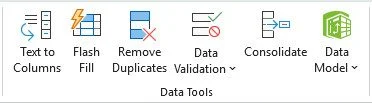
The tool we’re going to use here is Text to Columns. Now, typically we use this to take the text from one cell and split it across multiple columns, but it can be used in some other nifty ways.
Let’s get started.
First, I’ll select the dates in cells (A3:A8). Then head over to the Data tab and click the Text to Columns button to open Step 1 of the Convert Text to Columns Wizard.
Ensure that Delimited is selected, then click on the Next button.
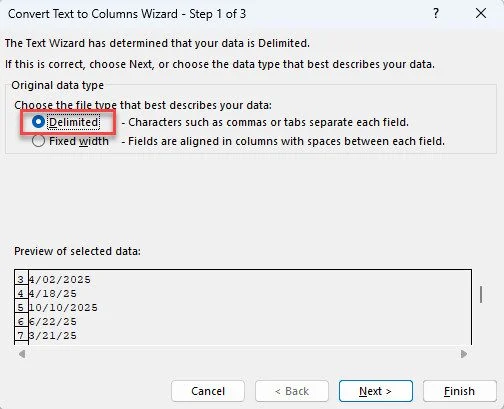
In Step 2, you would usually tick a delimiter such as a Tab, but we’re going to untick everything. (A delimiter is a separating character that Excel uses to determine how to split the data across columns, but we don’t want to do that).
Click on the Next button.

Now, in Step 3 of the Wizard, we need to change the Column data format to M/D/Y so that Excel recognises the dates.
I also like to change the Destination to a different column, so the original dates don’t get overwritten. This is just a precaution, and it allows me to do a check for any issues arising from the conversion.
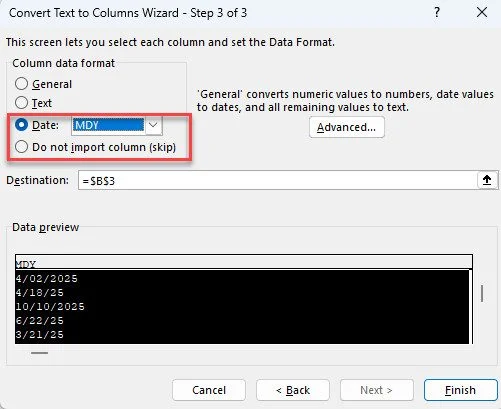
When ready, click the Finish button.
Conclusion
Boom Tish! The dates have been converted from Ketchup to Tomato Sauce, (or at least something that passes the pub test)!

I hope you found this helpful, and thanks for reading.